
How to Screenshot on Windows Surface RT
If you are looking at how to do a screenshot or screen capture on the Microsoft Surface Tablet then just use this combination of Keys
- Touch and hold the “Windows logo” on the face of the Surface. (Use your right hand)
- Whilst still pressing the logo click the “Volume Down”
The screen will dim slightly and your screenshot will be saved to a folder called “Screenshots” in your Picture library.
UPDATE: As Martin points out below, once you have captured your screenshot, a copy stays on the clipboard so you can simply paste it into Word, email or whatever you need. (Thanks Martin)
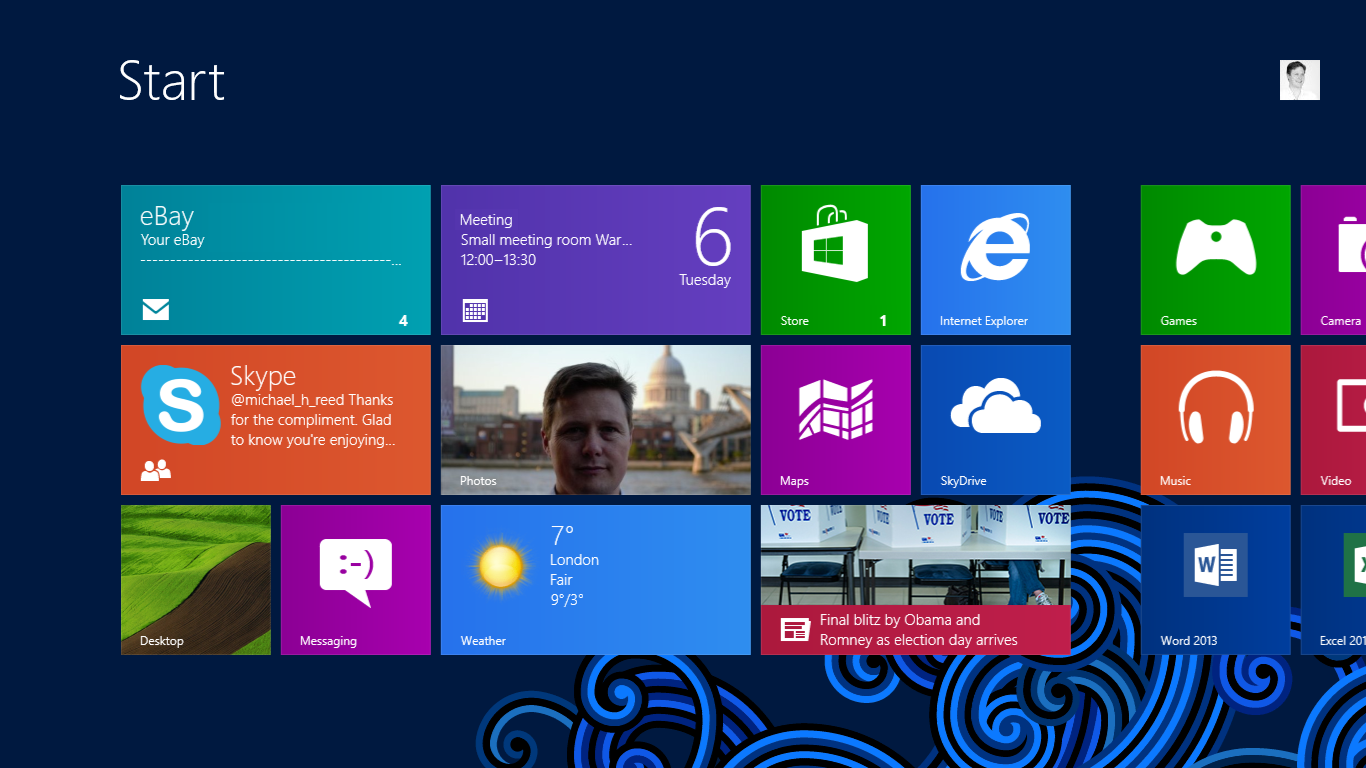
Windows Surface RT Screenshot

Michael is a Technology & Digital Consultant to the Real Estate, Property, Travel and Tourism industies with over 13 Years of leading Technical teams & Programme Management. He has worked with agencies in multiple countries and cities from the UK, New York, Russia, France, Dubai to Australia and South Africa. In his spare time he is a commercial drone pilot that dabbles with Photography & Videography.


